How to Create a WhatsApp Link and QR Code for Your Business
Create a practical WhatsApp click-to-chat link and QR code for websites, social profiles, posters, visiting cards, and customer enquiries.
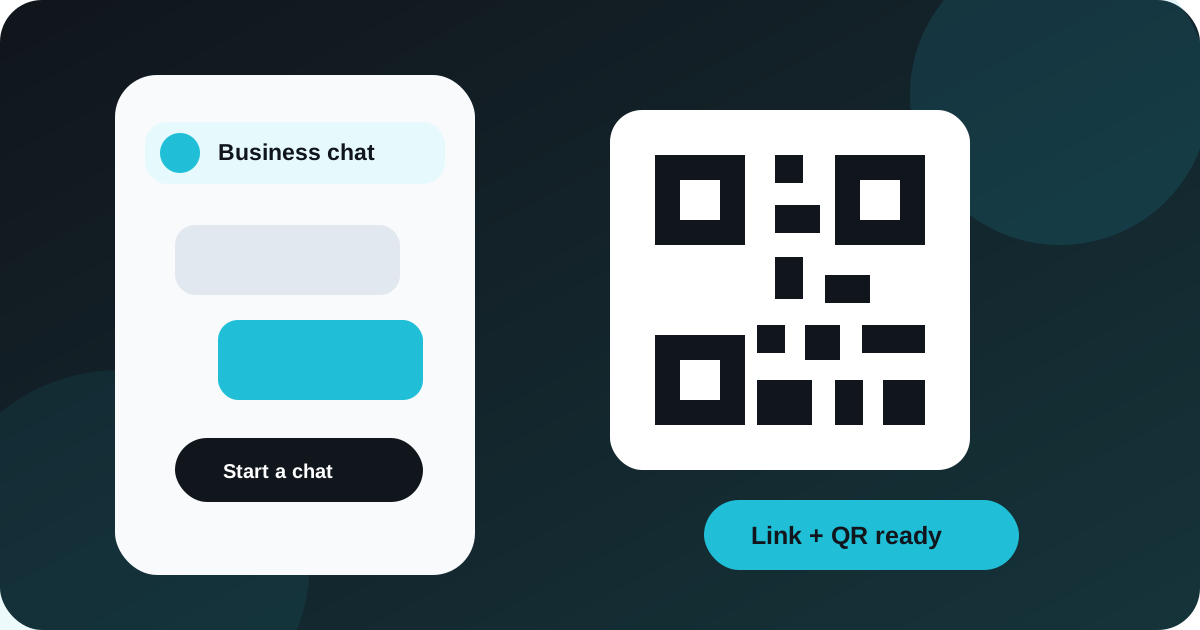
Table of contents
Introduction
WhatsApp is often the quickest enquiry channel for local businesses, freelancers, agencies, stores, and service teams in India. A WhatsApp link removes the need for a visitor to copy a number, save it, and then start a conversation. A matching QR code brings the same short journey to printed material.
The free HostKart WhatsApp Link and QR Generator prepares both formats from one set of details.
What is a WhatsApp click-to-chat link?
A click-to-chat link is a web address that opens a conversation with a specific WhatsApp number. It can also carry an optional prefilled message. The customer reviews that message and chooses whether to send it, so the link does not send anything automatically.
Why businesses use WhatsApp links and QR codes
These tools reduce friction between interest and enquiry. A website visitor can move from a service page to a chat in one action, while somebody viewing a printed menu or product box can scan a code. They also help teams identify intent when the prefilled message names a service, branch, campaign, or product.
Where you can use a WhatsApp link
- Website contact buttons and service-page calls to action.
- Instagram bio and supported social profile fields.
- Google Business Profile links where the selected field permits them.
- Flyers, posters, visiting cards, menus, invoices, and product packaging.
- Email signatures created with a professional email signature generator.
What information do you need?
Prepare the country code, mobile number registered with WhatsApp, and an optional opening message. Enter digits only for the number. For an Indian number, include country code 91 and omit spaces, brackets, and a leading plus sign when the tool requests digits.
Step-by-step guide using HostKart's generator
- Open the WhatsApp Link and QR Generator.
- Select or confirm the country code and enter the WhatsApp number.
- Write a short optional message that explains the enquiry.
- Generate the link and open it once on a phone to verify the destination.
- Download the QR code, test it at its intended print size, and then publish it.
Best practices for prefilled messages
Keep the message useful but conversational. “Hello, I would like details about your website hosting plans” is clearer than a long sales script. Use different messages for different campaigns only when your team can respond consistently. Do not put confidential customer information in a public link.
Common mistakes to avoid
- Leaving out the country code or retaining spaces in the number.
- Publishing without testing on Android, iPhone, and desktop where relevant.
- Using a message so long that the customer cannot quickly review it.
- Printing a small or low-contrast QR code.
- Pointing every campaign to a number that is not monitored during business hours.
WhatsApp link vs WhatsApp QR code
The link is best for digital locations such as a website, social profile, email, or PDF. The QR code is designed for a second device to scan and is especially useful in physical spaces. Both can lead to the same number and message, so businesses can maintain one enquiry workflow.
How HostKart's free tool helps
The tool produces a reusable link and downloadable QR code in one workflow. Explore the complete HostKart free tools collection, or connect the link to a domain-based address with business email services.
Create your WhatsApp link
Create your free WhatsApp link and QR code with HostKart. For help connecting enquiry tools to a website, book a consultation with HostKart.
Practical campaign examples
A home-service business can place a website button with the message, "Hello, I need a service appointment in [area]." A restaurant can print a QR code on a takeaway menu with a message asking for current ordering details. An agency can create separate links for website development, hosting support, and migration enquiries so the opening text gives the team useful context.
The public link should never contain an order password, payment detail, medical information, or other confidential data. Treat the prefilled message as public content because anybody who sees the link can read it.
Step-by-step publishing checklist
- Confirm that the number is actively monitored and includes the correct country code.
- Generate the link with a short, specific, editable message.
- Test it on a signed-in Android phone, iPhone, and desktop browser where relevant.
- Place the digital link behind descriptive text such as "Chat with sales" rather than exposing a long URL.
- Download the QR code and test it at the smallest planned print size.
- Record where the link is used so it can be updated if the business number changes.
Using the link on a website
Place the main link near the relevant service, not automatically on every paragraph. A floating contact button can help, but it must not cover forms, cookie controls, or mobile navigation. Add an accessible label that describes the action and ensure keyboard users can reach it.
Track clicks as an enquiry signal rather than counting them as completed leads. A click does not prove that a message was sent. Compare link clicks with real conversations and qualified enquiries before changing a campaign.
QR code print and design guidance
Maintain strong contrast, a clear quiet zone around the code, and enough physical size for the expected scanning distance. Do not stretch the image or place a complex photograph behind it. Test the final exported artwork, not only the preview shown in a design application.
Include nearby text explaining the destination, such as "Scan to ask about availability." Customers should understand that the code opens WhatsApp before they scan it.
Managing enquiries after launch
Assign response ownership and business hours. Prepare short saved replies for common questions without turning every conversation into an automated script. Review outdated links when a campaign ends, a branch closes, or the receiving number changes.
Review performance responsibly
Review which placements create useful conversations, not only which link receives the most clicks. Label campaigns consistently, ask the receiving team about lead quality, and remove placements that create confusion. The link should support a clear service journey rather than replace the information customers need before contacting the business.
Common questions
Frequently asked questions
Is the WhatsApp link generator free?
Yes. HostKart's tool can create a click-to-chat link and downloadable QR code without a tool fee.
Can I add a prefilled message?
Yes. Add a short optional message that opens in the customer's WhatsApp compose screen and can still be edited before sending.
Can I use the QR code on posters and business cards?
Yes. Download the QR code and test the final printed size with more than one phone before producing a large batch.
Do customers need to save my number first?
No. A valid click-to-chat link can open a conversation without requiring the customer to save the number first.
Can I use this for Instagram and Google Business Profile?
You can place the generated link in supported profile, website, and action-link fields. Check each platform's current link rules before publishing.
Book a consultation
Talk to HostKart about your setup.
Share your requirements and we will help you choose the right hosting, migration, DNS, WordPress, or VPS path.