How to Migrate Business Email Using IMAP Without Losing Data
Understand IMAP email migration, prepare source and destination mailboxes, reduce disruption risk, and verify messages after transfer.
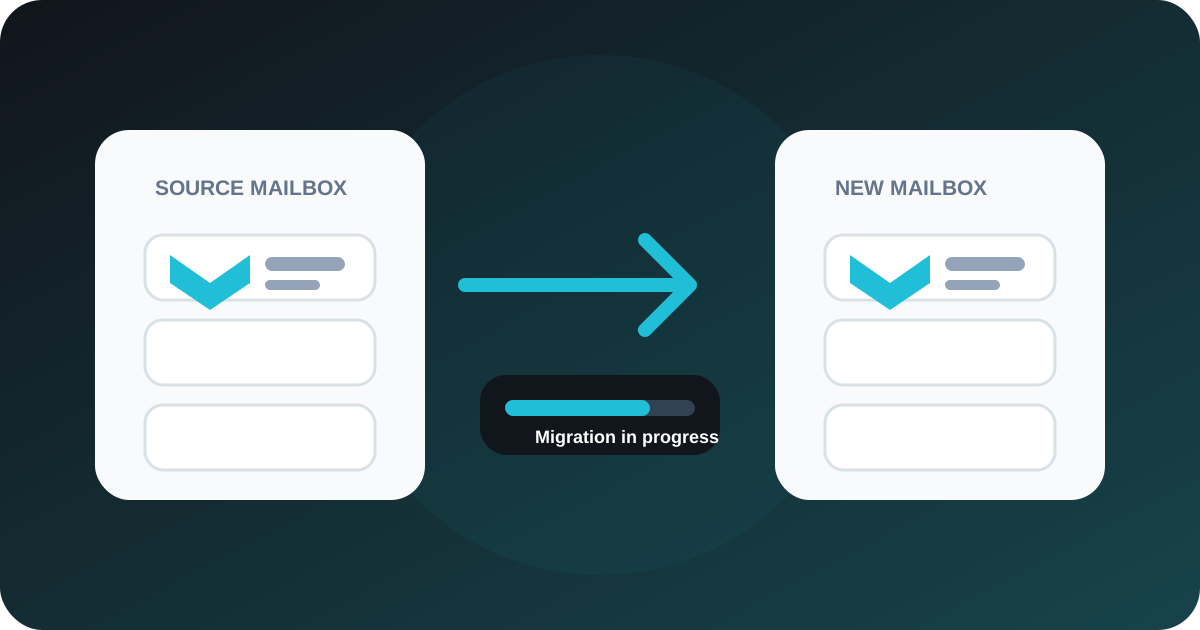
Table of contents
Introduction
Business email migration moves an active communication history between services. The technical copy is only one part: mailbox capacity, credentials, folder mapping, DNS timing, backups, and user testing all need attention. Plan the migration carefully and keep the old service available until verification is complete.
What is IMAP email migration?
IMAP migration connects to a source mailbox, reads folders and messages, and copies supported data into a destination mailbox. It normally leaves source messages in place. HostKart's IMAP Email Migration tool runs the transfer inside an eligible authenticated Bpanel account.
When businesses need email migration
Common reasons include moving from personal mail to domain-based business email, changing hosting providers, consolidating mailboxes, replacing an old control panel, or separating email from another service.
What data usually migrates with IMAP
IMAP generally exposes messages, attachments, dates, read state, and standard folders. Results depend on both providers, folder names, permissions, and destination capacity. Compare folder and message counts after the transfer rather than assuming completion from a single success message.
What IMAP may not migrate
Contacts, calendars, mail rules, signatures, aliases, forwarding, shared-mailbox permissions, and provider-specific labels are outside normal IMAP message copying. Prepare separate steps for anything the business relies on.
What to prepare before migration
- Source server hostname, port, encryption method, full mailbox username, and valid credentials.
- A tested destination mailbox with enough available storage.
- A record of folders, message counts, aliases, forwarders, and important settings.
- Access to active DNS and MX records.
- A backup or recoverable source copy.
- A migration window and a person responsible for final checks.
How HostKart's IMAP migration tool helps
The tool tests source connectivity, confirms that the destination belongs to the signed-in customer, scans folders, tracks progress, and reports transferred, skipped, duplicate, and failed messages. Credentials are handled as secrets and should never be placed in public URLs or support screenshots.
Common migration mistakes
- Switching MX records before the destination can send and receive.
- Closing the old service immediately after the first copy.
- Ignoring quota differences and large attachment folders.
- Using an ordinary password when the source requires an app password.
- Forgetting contacts, calendars, aliases, and forwarding rules.
- Failing to review the final transfer report.
How to reduce email disruption
Create and test the destination first. Copy historical email, confirm sending and receiving, then plan DNS changes. Keep both services available during the transition where possible, and run a final synchronisation after the routing change. Confirm the destination mailbox before switching DNS or MX records.
After-migration checklist
- Compare important folders and recent messages.
- Send test messages to and from external providers.
- Confirm aliases, forwarding, and mailbox limits.
- Update phones, desktops, websites, forms, and applications.
- Monitor both old and new mailboxes during the agreed overlap.
- Retain the backup according to the business recovery policy.
Start a planned migration
Start IMAP email migration with HostKart, review business email services and website migration assistance, or contact HostKart support. Browse the complete free tools collection for related planning utilities.
A migration example
Consider a team moving five mailboxes from an old cPanel server. The team first creates and tests destination mailboxes, records folder counts, runs the historical copy, reviews skipped messages, changes MX only after sending and receiving work, then runs a delta sync for mail that arrived during the transition.
The same sequence applies to one mailbox or many. More mailboxes increase the need for ownership, scheduling, quota checks, and a written completion record.
Step-by-step HostKart workflow
- Sign in to the eligible Bpanel customer account and open Email Migration.
- Select a destination mailbox owned by that account.
- Enter the source IMAP hostname, port, encryption, username, and secret through the protected form.
- Test the connection before creating the migration.
- Scan folders, review folder mapping, and exclude content that should not move.
- Start the copy and monitor transferred, skipped, duplicate, and failed counts.
- Retry recoverable failures, review warnings, and run a final delta sync.
Understanding skipped and failed messages
A skipped item may already exist, exceed a supported size, or be unavailable through the source server. A failed item could indicate a temporary connection issue, malformed message, authentication change, quota limit, or destination error. A job with successful transfers and a small number of skipped or failed items should be reviewed as partially completed rather than treated as if nothing moved.
Keep sanitised logs and message identifiers for review without exposing mailbox passwords or full private message content.
DNS and cutover timing
IMAP copying does not change where new email is delivered. MX and related records control delivery. Lowering DNS TTL in advance can help planning, but resolver caches and provider behaviour still need to be considered.
Verify SPF, DKIM, DMARC, webmail, SMTP submission, IMAP access, aliases, and forms after the change. Keep the old service available during the agreed overlap where possible.
Security after migration
Delete stored migration credentials when the transfer no longer needs them, rotate temporary passwords, enable strong authentication, and update every device. Do not send mailbox secrets in ordinary email or screenshots.
Close the migration safely
Do not cancel the source service merely because the progress bar reached the end. Obtain user confirmation for important folders, compare recent messages, retain the source or a recoverable export for the agreed period, and document exceptions. Update the mailbox inventory with the destination server, owner, recovery method, aliases, and renewal responsibility.
Only then remove temporary credentials and close the old service according to the business retention policy.
Common questions
Frequently asked questions
Does IMAP migration copy all old emails?
It can copy messages that the source account exposes through IMAP and that fit the destination limits. Review the migration report and compare mailbox counts and folders afterward.
Will email folders migrate?
Most standard IMAP folders can be mapped and copied, but provider-specific labels, special folders, and naming rules can differ.
Does IMAP migrate contacts and calendars?
No. IMAP is primarily for mail messages and folders. Contacts, calendars, rules, signatures, and provider-specific settings need separate export or migration steps.
Can I migrate from Gmail, Outlook, Zoho, cPanel, or Plesk?
Migration can work when the provider offers compatible IMAP access and valid credentials. Some providers require app passwords or administrator settings before a connection is accepted.
Should I back up email before migration?
Yes. Keep a recoverable source or export, especially before changing DNS or closing the old service.
Can email downtime be completely avoided?
No universal zero-disruption promise is responsible. Careful preparation, destination testing, MX planning, and overlap between services can reduce the risk of disruption.
Book a consultation
Talk to HostKart about your setup.
Share your requirements and we will help you choose the right hosting, migration, DNS, WordPress, or VPS path.